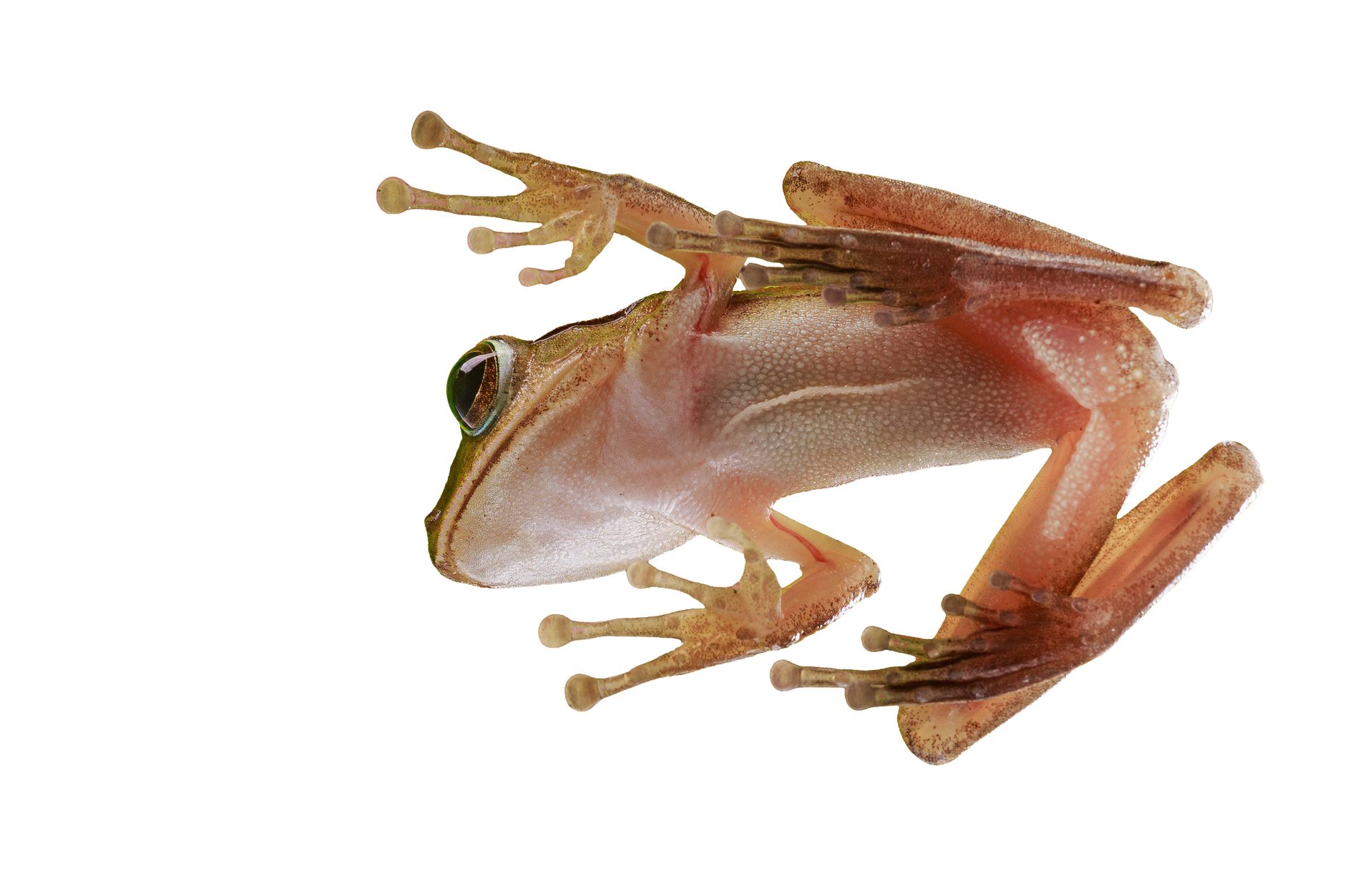
If you’ve ever tried to cut out a product, person, or logo using manual tools, you already know how slow and frustrating it can be. Jagged edges, messy hair lines, and inconsistent transparency can turn a quick edit into a long project. That’s exactly why an AI background remover matters.
With today’s ai background remover technology, you can remove background from image results that look crisp, realistic, and ready to use—often in seconds. Whether you’re building e-commerce listings, creating social media creatives, preparing thumbnails, or designing marketing assets, a reliable transparent background maker helps you move faster without sacrificing quality.
In this guide, we’ll walk through what an ai background remover does, how to use one effectively, what “transparent background” outputs usually look like, and best practices to get truly polished results. We’ll also highlight why AIZora offers free access to help you remove backgrounds quickly and confidently.
What Is an AI Background Remover and How Does It Work?
An AI background remover is a tool that detects the foreground subject in your photo (the person, object, or logo) and removes the background automatically. Behind the scenes, the AI model segments the image—meaning it learns where the subject ends and the background begins—then outputs a clean mask.
Most tools produce:
- Transparent PNG (commonly used for overlays and compositing)
- Cutout layers you can place over new backgrounds
- Refined edges for semi-transparent details like hair, fur, smoke, or glass
When someone says “remove background from image instantly,” they usually mean you upload, click remove, and receive a ready-to-use result without manual tracing.
Pro idea: If you plan to reuse cutouts across multiple campaigns, transparent PNG output is usually your best choice because it keeps transparency intact.

Why Use an AI Background Remover Instead of Manual Editing?
Manual background removal tools require patience and skill, especially around complex edges—hair strands, reflections, thin product parts, and overlapping objects. An ai background remover reduces the friction by automating segmentation and producing a polished output faster.
Key advantages
- Speed: Remove background from image in seconds rather than minutes or hours.
- Consistency: Similar image types (portraits, products, logos) often get consistent results.
- Better edge handling: AI can maintain semi-transparent boundaries better than many basic erasers.
- Creative flexibility: You can swap backgrounds, place the cutout on gradients, or use it in collages without redoing the work.
That’s also why people search for a background eraser ai: it’s the fastest way to “erase” the background while preserving the parts you want to keep.
How to Remove Background From Any Image Instantly (Step-by-Step)
Even though the workflow is typically simple, following a repeatable method will improve your output. Here’s a practical step-by-step approach you can use with AIZora’s AI Background Remover.
- Upload your image
Choose a clear photo where the subject stands out from the background. - Select Remove Background
Let the AI analyze the scene and separate the subject. - Review the edges
Check areas like hair, accessories, logos, and any fine details. - Export with transparency
Download your cutout as a transparent PNG (or the closest available format). - Use the cutout
Drop it into your design, thumbnail, store listing, or social post instantly.
If your goal is to create a transparent background maker workflow, your main win is having the subject ready for compositing—without reselecting it every time.

Best Practices for Cleaner Transparent PNG Results
AI works best when the input image is clear. You can’t always control lighting or image quality, but you can take steps that help the AI background remover detect boundaries more accurately.
Before you remove the background
- Use high-resolution images: More pixels means finer edge details.
- Improve subject-background contrast: A distinct subject from the background helps segmentation.
- Avoid heavy blur on the subject: Blurry subjects can cause the AI to “guess” boundaries.
- Watch out for cluttered backgrounds: Complex patterns may confuse the model.
After you remove the background
- Check the outline at 100% zoom: Look for halos, missing edges, or artifacts.
- Verify transparency: Confirm the background is truly transparent, not a solid fill.
- Re-export if needed: If the tool provides an adjustment pass, use it before final download.
- Match your final background style: If you plan to place the cutout on a new background, ensure lighting and color contrast feel natural.
These best practices can significantly improve results, especially when you’re using a background eraser ai to handle tricky images.
AI Background Remover Use Cases (Marketing, Product, Creators)
The reason this tool is so popular is that it supports real workflows—especially for creators and marketers who produce assets frequently.
Common scenarios
- E-commerce listings: Create consistent product cutouts for catalogs and marketplaces.
- Social media content: Build ads, reels thumbnails, and banner graphics with clean subjects.
- Personal branding: Use transparent PNGs to create professional intros, slides, and portfolio visuals.
- Event graphics: Make invitations, photo collages, and RSVP pages without time-consuming masking.
- Branding & presentations: Remove backgrounds from logos or icons to reuse them across decks.
If you’re aiming to remove background from image for frequent updates, you’ll appreciate how quickly the cutout becomes usable—especially when you can do it with free access on AIZora.
| Task | Best Output | Why It Helps | Tip |
|---|---|---|---|
| Product photo cutouts | Transparent PNG | Easy to place on any background and maintain crisp edges | Use high-contrast product shots |
| Portraits & people | Transparent background with refined edges | Keeps details around hair and clothing boundaries | Zoom in and verify the silhouette |
| Logos & icons | Clean edges on transparent background | Perfect for branding assets and slide decks | Prefer images with minimal noise |
| Creative compositing | PNG transparency | Layer effects (shadows, gradients, overlays) look natural | Match color temperature to the new background |
Troubleshooting: When the Background Remover Misses Details
Even the best ai background remover won’t always be perfect on every image. The good news: most issues are predictable—and fixable with smarter inputs.
Common problems
- Halos around the subject: Often caused by low resolution, compression, or strong background contrast edges.
- Missing thin parts: Hair strands, cables, or small accessories may get partially cut.
- Background fragments left behind: With patterned or cluttered backgrounds, small elements may be mistaken for the subject.
- Cutout feels jagged: Typically an edge-resolution issue rather than a “wrong” AI choice.
How to improve quickly
- Try a different crop: Cropping closer to the subject reduces background complexity.
- Use a higher-quality version: If you have an original photo, upload that instead of a compressed screenshot.
- Re-check the background region: If the background includes textures similar to the subject, separation gets harder.
- Consider a two-step edit: If your workflow allows it, do a first remove pass, then refine if the tool supports adjustments.
Reminder: The goal isn’t just to “remove background,” but to produce a transparent PNG that looks great in real designs.
Quick Demo: See the AI Background Remover in Action
Visuals help—especially when you want to confirm how fast and clean the cutouts are. Here’s a short demo showing the background removal process workflow.
Final Thoughts: Faster Edits with AI Background Remover on AIZora
When you need to remove background from image quickly and consistently, an AI background remover is one of the highest-impact tools you can add to your toolkit. Instead of spending hours manually masking, you can generate a clean transparent background maker result and move on to design, marketing, or content creation right away.
If you’re looking for a reliable way to use a background eraser ai workflow without extra cost, try free access on AIZora. Upload your image, remove the background instantly, and export your cutout for immediate use.
Ready to try it? Start with your next product photo, portrait, or logo—then let the AI handle the background removal while you focus on what matters: the final look.